Reference
Revit version compatibility: which versions open which files
Revit files only move forwards. A quick reference to which releases open which files, what an upgrade actually changes, and the traps that catch project teams out.
Revit version compatibility runs in one direction. A newer release opens files from older releases and upgrades them; an older release cannot open files from a newer one. Everything else in this guide follows from that single rule.
How does Revit version compatibility work?
Autodesk describes backward compatibility as two separate abilities, and Revit only has the first:
- Opening older files. When you open a model from an earlier release, Revit upgrades it to your release automatically and shows a Model Upgrade message naming the release it is upgrading from and to.
- Saving to an older format. Revit has no feature for this. You cannot save a project, family or template back to an earlier release from inside Revit.
There is no fixed limit on how far a file can jump forwards. Autodesk's own example is a Revit 2018 model upgraded directly to Revit 2024. If a large jump causes problems, Autodesk suggests upgrading one release at a time.
Revit compatibility chart: 2023 to 2027
Read across from the release that saved the file to the release you want to open it in.
| File saved in | Revit 2023 | Revit 2024 | Revit 2025 | Revit 2026 | Revit 2027 |
|---|---|---|---|---|---|
| 2022 or earlier | Upgrades | Upgrades | Upgrades | Upgrades | Upgrades |
| Revit 2023 | Opens | Upgrades | Upgrades | Upgrades | Upgrades |
| Revit 2024 | No | Opens | Upgrades | Upgrades | Upgrades |
| Revit 2025 | No | No | Opens | Upgrades | Upgrades |
| Revit 2026 | No | No | No | Opens | Upgrades |
| Revit 2027 | No | No | No | No | Opens |
The pattern is simple: a file opens in its own release and in every later one. That is why a Revit 2023 file is such a useful shared format. It opens in all five current releases, which is also why RVT Convert converts newer files to Revit 2023 rather than to any other release.
Revit LT follows the same rules. Autodesk's Revit LT help states that models are not backwards compatible, so a file upgraded and saved in a newer release can no longer be opened in an earlier one.
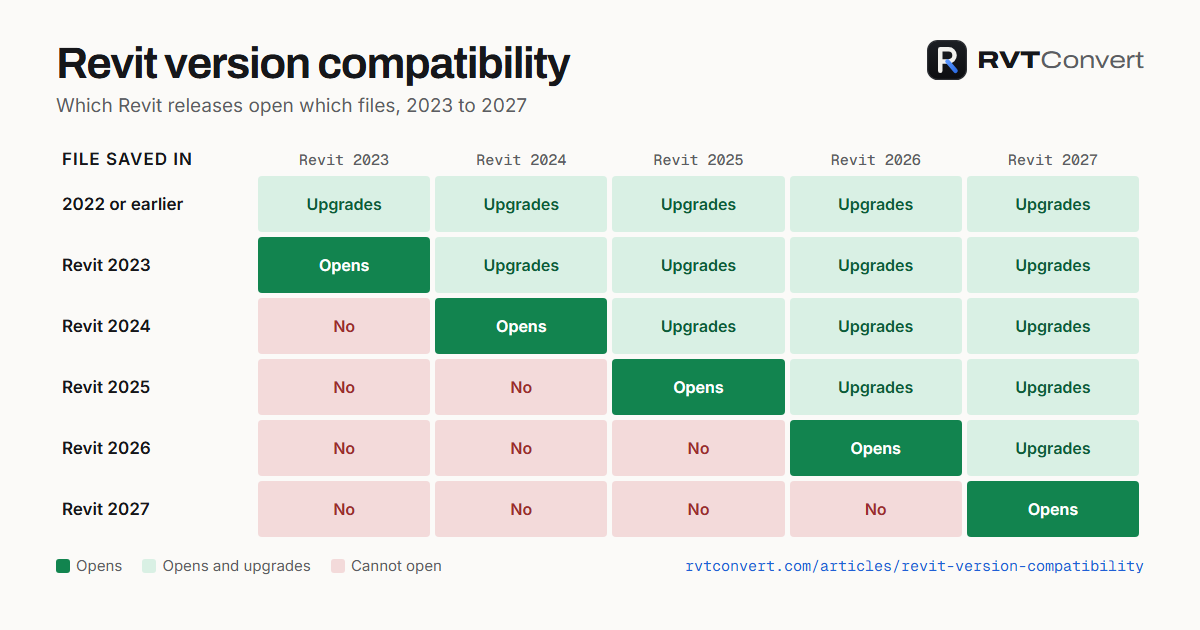
Free to use in your BIM standards, execution plans, training or blog, with a credit link. Download the chart (PNG) or paste this code into your page:
<a href="https://rvtconvert.com/articles/revit-version-compatibility/"><img src="https://rvtconvert.com/assets/img/revit-compatibility-chart.png" width="1200" height="630" alt="Revit version compatibility chart, 2023 to 2027"></a>
<p>Chart: <a href="https://rvtconvert.com/articles/revit-version-compatibility/">Revit version compatibility</a> by RVT Convert</p>What does the upgrade actually change?
The upgrade converts the file to the newer release's format. Until you save, the change lives only in memory, which is why Revit suggests saving straight after an upgrade so the process does not repeat every time the file opens. Upgrading a large model can take a while, and Autodesk recommends saving the upgraded model so it opens more quickly next time.
The moment you save, the file belongs to the newer release. Anyone still on the older release can no longer open it. Before upgrading anything shared, keep a copy in the original release.
Families behave slightly differently. When you load an older family into a newer project, the copy inside the project is upgraded, but the family file in your library is not changed unless you open and save that file in the newer release. Our guide to using newer families and templates in an older version covers content libraries in more detail.
How are linked models handled?
If a host model contains links from an earlier release, Revit upgrades each link when the host opens. According to Autodesk, those upgrades are temporary: they are not saved when you save the host, so the same links upgrade again next time, slowing every opening.
To upgrade a link permanently, close the host, then open, upgrade and save the linked model itself. Autodesk suggests eTransmit to streamline upgrading a host together with its links. A link from a newer release than the host cannot be loaded at all, for the same reason the file will not open on its own.
How do you upgrade a workshared project?
Workshared projects need a plan, because everyone works from one central model. Autodesk's guidance for file-based worksharing comes down to this:
- Back up the central model before you start.
- Ask everyone to synchronise with central, relinquish all elements and close their local copies.
- Upgrade the linked models first, then the central model. Only the central model needs upgrading; old local copies are discarded.
- Everyone creates a new local copy in the new release once the upgrade is finished.
One trap is worth knowing: if someone upgrades their local copy and saves it, that copy can no longer synchronise with central.
What if you upgraded a file by mistake?
It happens easily. Double-clicking a file starts the most recently installed release, which then offers to upgrade it. If you click through and save, you have two ways back:
- Recover from a backup. Autodesk's tip is to open the most recent backup file in the original release. Some recent changes may be lost, but most of the project will be intact.
- Convert it to Revit 2023. If the original release was Revit 2023, or everyone who needs the file runs Revit 2023 or later, converting the upgraded file to Revit 2023 is another route: see how to save a Revit file to an older version.
Frequently asked questions
Can Revit 2023 open a Revit 2024 file?
No. Revit 2023 cannot open files saved in Revit 2024 or any later release. The file opens in Revit 2024 or later, or can be converted to Revit 2023.
How many versions back can Revit open?
Autodesk sets no fixed limit. Newer releases open and upgrade old files, and Autodesk's example is a Revit 2018 model upgraded straight to Revit 2024.
Do I have to save after an upgrade?
No, but Revit repeats the upgrade every time you open an unsaved file. Save once you are sure you want to stay on the newer release, and keep a copy of the original.
Which Revit version should I use to share files?
The oldest release anyone on the project uses. A file saved in that release opens for everyone else, upgrading on the way. To see which release saved each file in a folder, use the free Revit version checker.
How do I know which update of a release I have?
Open Help > About in Revit and read the build number, then look it up in our list of Revit build numbers, which covers every update from 2022 to 2027.
Key takeaways
- Newer Revit releases open and upgrade older files; older releases never open newer ones.
- A Revit 2023 file opens in Revit 2023, 2024, 2025, 2026 and 2027.
- Saving after an upgrade is one-way, so keep a copy first.
- Upgrades of linked models are temporary until each link is upgraded and saved itself.
- Upgrade workshared projects to a plan: back up, sync, links first, then new local copies.